Connecting Your YouTube Account to Repostit #
You can connect any Youtube account (personal or Brand Account) to RepostIt. The main limitation is the Youtube API, this could give problems in the upload.
Requirements #
A functional Google Account that is linked to the YouTube channel you want to connect. The account must be able to sign in and grant permissions (channel owner access is usually required for full upload capability).
Recommended: use a modern browser (Chrome, Edge, Firefox) and make sure third-party cookies or pop-ups required for the Google sign-in are not blocked
How to Connect #
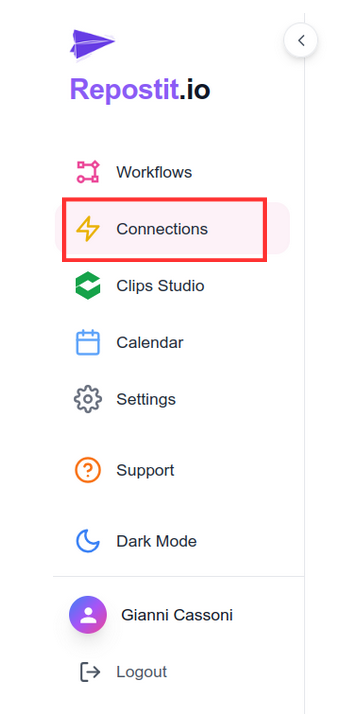
First open RepostIt and go to “connections“:
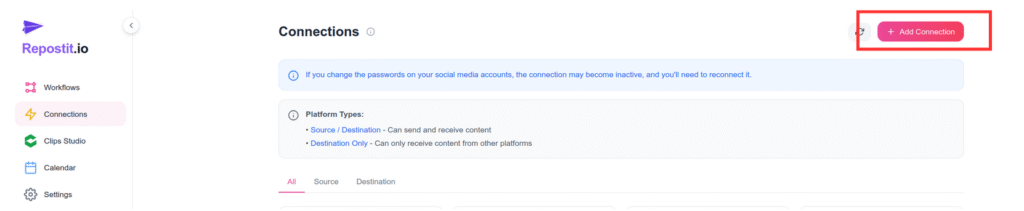
then select “add connection”
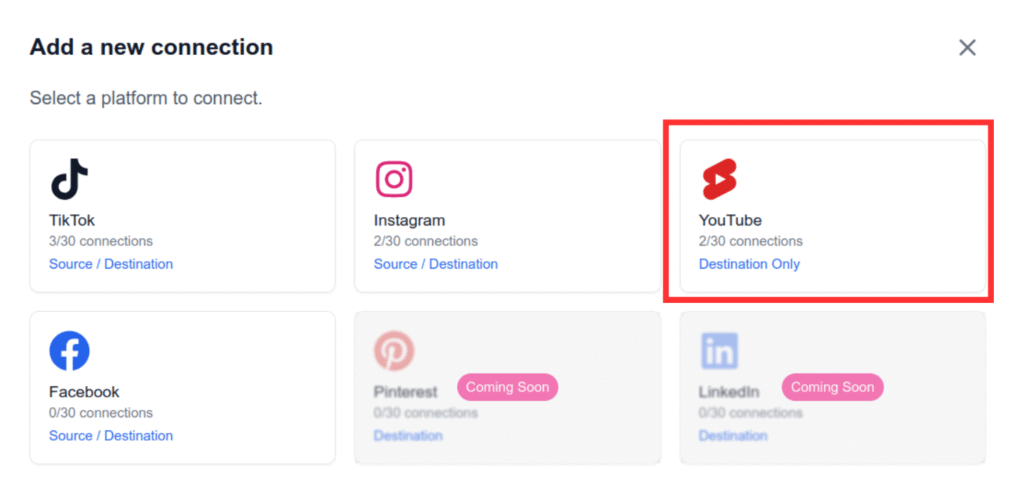
A window will open and on the upper right click “Connect YouTube”
Sign in to your Google Account (linked to YouTube) and grant the permissions.
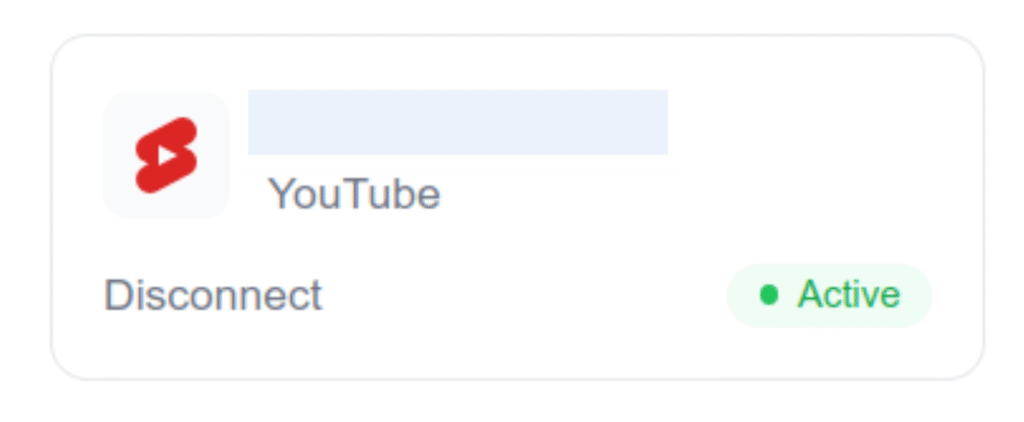
If everything was done correctly and the account permissions are set properly, this procedure will display a “Connection succeeded” message at the end and show the connected account.
Troubleshooting #
If your YouTube connection to Repostit doesn’t go through, start by checking a few common causes:
- Ensure your channel isn’t set to “Made for Kids.” This YouTube setting limits API access and can prevent Repostit from connecting properly. You can verify this in YouTube Studio → Settings → Channel → Advanced Settings → Audience. If your channel is marked as “Made for Kids,” change it to “Not made for kids” (if applicable) and try connecting again.
- Verify you’re the channel owner and not just a manager. Only channel owners have full API access needed for publishing and connection. If you’re managing a Brand Account, ask the owner to connect Repostit or temporarily promote your role to owner before retrying.
If you’ve confirmed both of these settings and the connection still fails, try reconnecting using a different browser or an incognito/private window, and make sure you’re signed in to the correct Google account.
If none of these steps work, contact Repostit Support by using the chatbot present in the right lower corner.
Video Tutorial: #

Platform-specific checks #
YouTube Shorts checks #
- YouTube authorization is tied to a Google account and channel picker, so confirm the channel before approval.
- Shorts performance depends on vertical format, duration, title, and whether YouTube accepts the upload as a Short.
- Open YouTube Studio after the first test if you need to confirm processing, visibility, or copyright checks.
Practical check #
- Keep the first version simple enough that you can verify it quickly.
- Write down the source account, destination account, and reason for the workflow.
- Review the first result on the destination platform before increasing posting volume.
Quality bar before you rely on this #
Before you treat this as a live Repostit workflow, publish one low-risk test and inspect the result on YouTube Shorts. A workflow is ready only when the correct source account, destination account, video format, and permission path all match what you expected.
If this is for a client or brand account, write down the source, destination, approval owner, and reason for the workflow. That small note prevents confusion later if someone asks why a post appeared on a specific channel, Page, or profile.


