If you click Connect for Instagram, Facebook, YouTube, TikTok, or another social account and nothing opens, your browser may be blocking the authorization window.
Repostit uses a secure window or tab to send you to the social platform’s official login and permission screen. If that window is blocked, the connection cannot finish.
The fix is to allow pop-ups and redirects for Repostit, then try connecting your account again.
Most customers should allow pop-ups for https://app.repostit.io, which is where the Repostit app runs. If your address bar shows https://repostit.io, allow that address too.
Visual checklist #
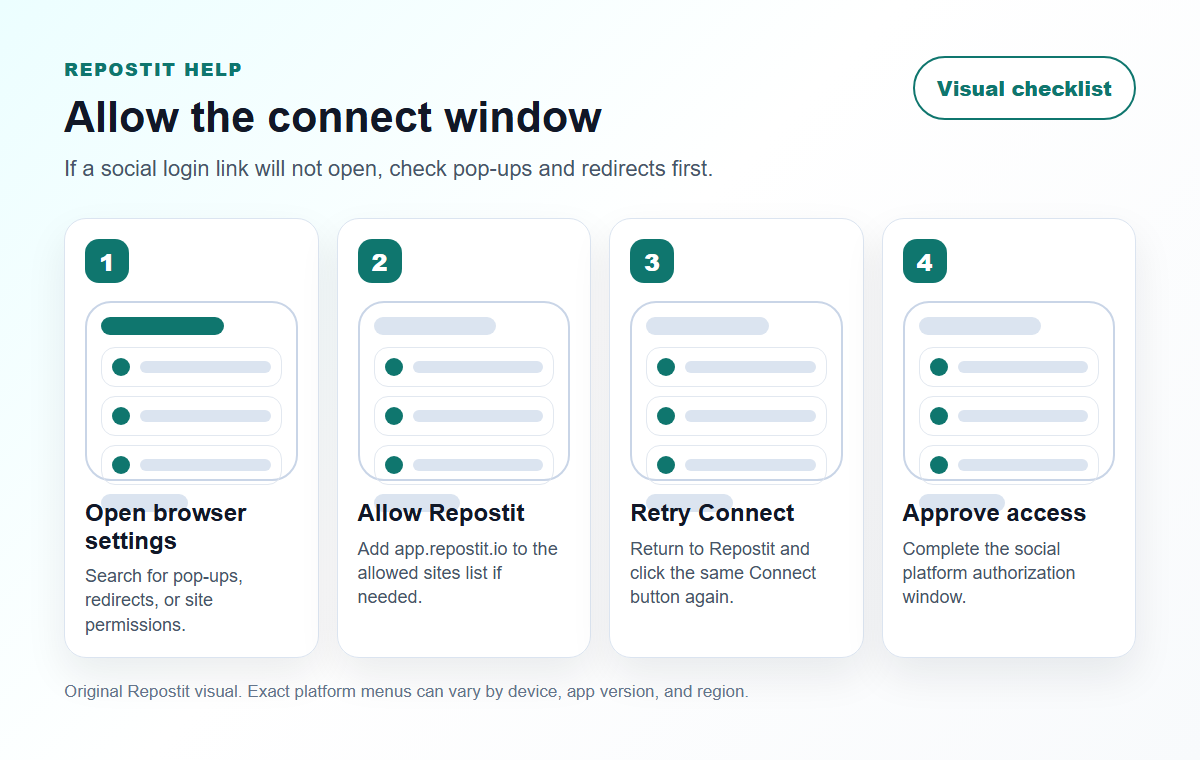
Quick fix #
- Go back to Repostit and click Connect again.
- If you see a blocked pop-up icon in the browser address bar, click it.
- Choose Always allow pop-ups and redirects from Repostit or Allow for this site.
- Click Done, then retry the connection.
Only allow pop-ups for Repostit. You do not need to allow pop-ups for every website.
Google Chrome #
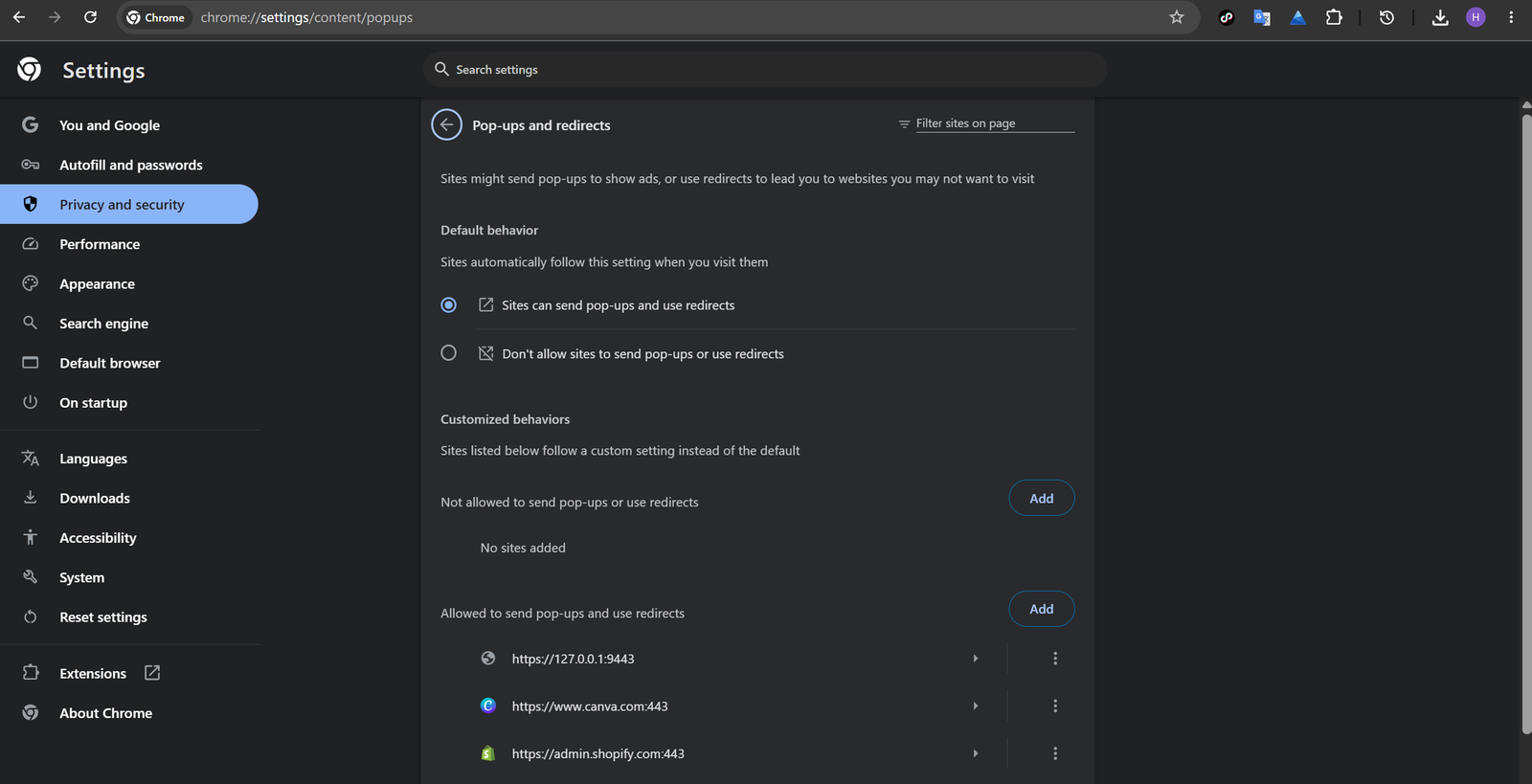
- Open Chrome.
- Click the three dots in the top-right corner, then open Settings.
- Go to Privacy and security > Site settings > Pop-ups and redirects.
- Under Allowed to send pop-ups and use redirects, click Add.
- Add
https://app.repostit.io. If your address bar showshttps://repostit.io, add that too. - Return to Repostit and click Connect again.
You can also allow it directly when Chrome blocks the window: click the blocked pop-up icon in the address bar, choose the Repostit authorization window, then select Always allow pop-ups and redirects.
Microsoft Edge #
- Open Edge.
- Click the three dots in the top-right corner, then open Settings.
- Go to Privacy, search, and services > Site permissions > All permissions.
- Open Pop-ups and redirects.
- Under Allowed to send pop-ups and use redirects, click Add.
- Add
https://app.repostit.io, then click Add. If your address bar showshttps://repostit.io, add that too. - Return to Repostit and click Connect again.
Safari on Mac #
- Open Safari and go to Repostit.
- In the menu bar, choose Safari > Settings.
- Click Websites.
- Click Pop-up Windows in the left sidebar. If you do not see it, scroll to the bottom of the sidebar.
- Find Repostit or
app.repostit.ioin the website list and choose Allow. - Return to Repostit and click Connect again.
Safari on iPhone or iPad #
- Open the Settings app.
- Tap Apps, then tap Safari. On some iOS versions, Safari appears directly in Settings.
- Turn off Block Pop-ups.
- Go back to Repostit and connect your social account.
After your account is connected, you can turn Block Pop-ups back on if you prefer.
Firefox #
- Open Firefox.
- Click the menu button, then open Settings.
- Go to Privacy & Security.
- Scroll to Permissions.
- Next to Block pop-up windows or Block pop-ups and third-party redirects, click Exceptions or Manage exceptions.
- Add
https://app.repostit.io, click Allow, then click Save Changes. If your address bar showshttps://repostit.io, add that too. - Return to Repostit and click Connect again.
If it still does not open #
- Check whether an ad blocker, privacy extension, or security extension is blocking new windows for Repostit.
- Try connecting from a private or incognito window with extensions disabled.
- Make sure your browser is up to date.
- If you are using a work or school browser, your administrator may need to allow pop-ups for Repostit.
If you are still stuck, email support@repostit.io and tell us your browser, device, and which social account you were trying to connect. If you can, include a screenshot of any blocked pop-up message you see.
Official browser help #
- Chrome pop-up and redirect settings
- Microsoft Edge pop-up settings
- Safari pop-up settings on Mac
- Firefox pop-up blocker settings
Browser setup #
- Allow pop-ups and redirects for Repostit before starting a connection.
- Use a browser profile signed in to the correct social account.
- If the wrong profile opens, sign out of the social platform and reconnect.
Quality bar before you rely on this #
Before you treat this as a live Repostit workflow, publish one low-risk test and inspect the result on the connected platforms. A workflow is ready only when the correct source account, destination account, video format, and permission path all match what you expected.
If this is for a client or brand account, write down the source, destination, approval owner, and reason for the workflow. That small note prevents confusion later if someone asks why a post appeared on a specific channel, Page, or profile.


