 Repostit
How to Schedule Reels on Instagram (2026): App, Desktop and Every App at Once
· 4 min read
Yes, you can schedule Reels on Instagram, for free, as long as you have a professional account (Creator or Business). In the app, tap +, make your Reel, open More options and turn on Schedule this reel, then pick a date up to 75 days ahead. On a computer, use Meta Business Suite. If you also want the same Reel on TikTok, YouTube Shorts or other apps at the same time, you need a cross-posting tool.
Steps were checked against Instagram’s and Meta’s current tools in November 2026. Menu names can differ slightly between app versions.
Three ways to schedule an Instagram Reel

Before you start: switch to a professional account
Scheduling only shows up on Creator and Business accounts. Switching is free and keeps your followers and posts:
- Open your profile, tap the menu (three lines) and go to Settings and activity.
- Tap Account type and tools, then Switch to professional account.
- Pick Creator if you’re a person, Business if you’re a brand.
Method 1: schedule a Reel in the Instagram app
- Tap + at the bottom and choose Reel.
- Pick or record your video, edit it, and tap Next.
- Write the caption, add hashtags, tag people, and choose a cover.
- Tap More options and turn on Schedule this reel.
- Choose the date and time, tap Done, then Schedule reel.
To see what’s queued, open your profile menu and look for Scheduled content. From there you can reschedule, share now or delete a Reel. You can’t change the video itself after scheduling: delete it and schedule it again.
Method 2: schedule Reels from a computer with Meta Business Suite
The Instagram app is the only place to schedule on a phone, and Instagram’s website doesn’t offer scheduling. On a computer, use Meta Business Suite, which is free:
- Connect your Instagram account to a Facebook Page in Meta Business Suite.
- Click Create reel.
- Choose Instagram, Facebook, or both, then upload the video.
- Add the caption and cover.
- Under the publishing options, choose Schedule, set the date and time, and confirm.
Scheduled Reels appear in the Planner calendar and under Content, where you can edit or delete them. Meta allows scheduling posts up to 75 days ahead; some users see a shorter window for Reels, so check the date picker before you plan a month of content.
Method 3: schedule once, post to Instagram and every other app
Meta’s tools only post to Instagram and Facebook. If your Reels also go to TikTok, YouTube Shorts, X, Threads, LinkedIn or Pinterest, a cross-posting tool saves you uploading the same video six times. In Repostit’s post planner:
- Click New Post, pick your Instagram account, write the caption and add the video.
- Click + Cross-Post and add the other apps. Each one gets its own version you can adjust.
- Use Preview to check how it looks on each app.
- Set the date and time, then Schedule. The post appears on the calendar.
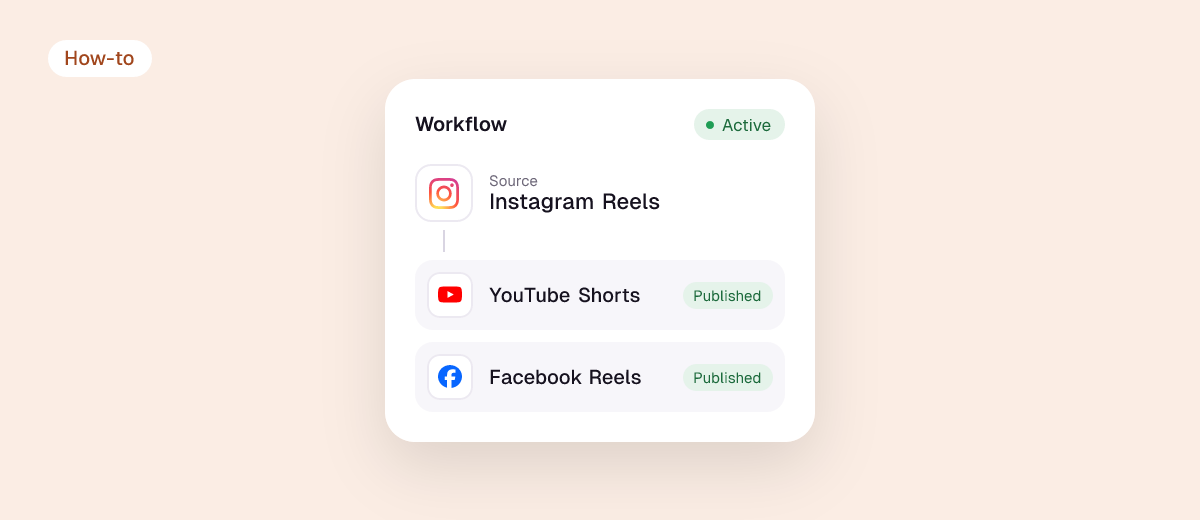
If you’d rather keep posting in the Instagram app, a workflow does the opposite: every Reel you publish is reposted to your other apps automatically, without watermarks and resized for each one. Repostit starts at $5 a month, with a 14-day free trial and no card. Try it free.
Common problems and fixes
- No “Schedule” option: you’re on a personal account, or your app needs updating. Switch to a professional account and update Instagram.
- The scheduled Reel didn’t post: open Scheduled content to see if it failed, then share it now. A video that breaks Instagram’s guidelines or uses restricted music can be held back.
- Music missing: some licensed songs aren’t available to Business accounts. Use Instagram’s royalty-free audio or your own sound.
- Wrong time: scheduling uses your phone’s or browser’s time zone. Check it before scheduling for another country.
When is the best time to schedule Reels?
There’s no single best hour for everyone. Open Insights on your professional account, look at when your followers are most active, and schedule 30 to 60 minutes before that peak. Test two or three slots for a few weeks and keep the one that works. For how often to post, see how many videos you can post per day.
FAQ
Can you schedule Reels on Instagram for free?
Yes. The Instagram app and Meta Business Suite both schedule Reels for free on professional accounts.
Can you schedule posts on Instagram with a personal account?
No. Scheduling is only available on Creator and Business accounts. Switching is free and reversible.
How far in advance can you schedule an Instagram Reel?
Up to 75 days in the Instagram app. In Meta Business Suite, check the date picker, as the window for Reels can be shorter.
Can I schedule Instagram Reels on a computer?
Yes, with Meta Business Suite or a scheduling tool. Instagram’s own website doesn’t schedule posts.
Can I schedule a Reel to Instagram and TikTok at the same time?
Not with Meta’s tools. Use a cross-posting tool like Repostit, which schedules one post to Instagram, TikTok, YouTube Shorts and other apps together.