 Repostit
LinkedIn Post Scheduler: How to Schedule LinkedIn Posts (2026)
· 3 min read
A LinkedIn post scheduler lets you write a post today and have it published on your profile or Company Page at a set time. LinkedIn has a basic scheduler built in. A scheduling tool is worth it when you also post the same video or images to Instagram, TikTok, YouTube or X, or want a calendar of everything in one place.
Can you schedule posts on LinkedIn?
Yes. LinkedIn’s own composer has a clock icon next to the Post button, on desktop and in the app, for profiles and for Pages you manage. Third-party guides report you can schedule up to about 3 months ahead. LinkedIn’s scheduler only posts to LinkedIn, and Pages have some exceptions (for example polls and some post types can’t be scheduled).
| LinkedIn’s built-in scheduler | A scheduler like Repostit | |
|---|---|---|
| Price | Free | From $5 a month, 14-day free trial |
| Profile and Company Page | Yes | Yes |
| Same post to Instagram, TikTok, YouTube, X, Threads | No | Yes, in one post |
| Calendar across all your apps | No | Yes |
| Auto-post every new TikTok or Reel to LinkedIn | No | Yes, with workflows |
How to schedule a LinkedIn post (free, built in)
- Click Start a post on your profile, or open your Page and start a post as the Page.
- Write the post and add your video or images.
- Click the clock icon next to Post.
- Pick the date and time, click Next, then Schedule.
- To edit or delete it later, open the composer and choose View all scheduled posts.
How to schedule LinkedIn posts with Repostit
Repostit’s Post planner schedules a LinkedIn post together with every other app you use:
- Connect LinkedIn: your personal profile, a Company Page, or both.
- Create a post, add the video or images and the caption.
- Click Cross-Post to add Instagram, Facebook, X, Threads, TikTok, YouTube or Pinterest, and adjust each version.
- Check the side-by-side Preview, then pick the date and time and schedule it.
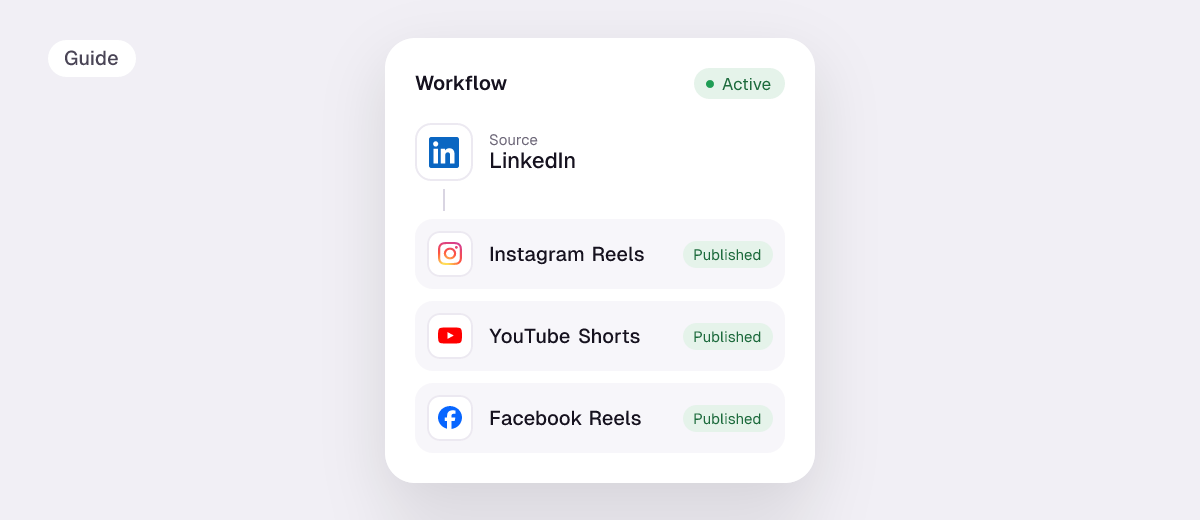
Already posting short videos on TikTok? A TikTok to LinkedIn workflow sends them to LinkedIn on its own. Keep it on Manual so you approve only the videos that suit a professional audience.
Tips for scheduled LinkedIn posts
- Write for LinkedIn. A TikTok caption full of hashtags reads oddly on LinkedIn. Edit the LinkedIn version in the cross-post.
- Weekday mornings are a sensible starting point for B2B audiences; check your own analytics after a few weeks.
- Stay around for comments. Scheduling saves time, but replying in the first hour still helps.
- Vertical video works on LinkedIn, so the same 1080×1920 file you post to Reels can go here. Check sizes with the video size checker.
FAQ
Can I schedule LinkedIn posts for free?
Yes, with LinkedIn’s built-in scheduler (the clock icon in the composer). You need a tool only to schedule the same post to other apps too.
Can I schedule posts on a LinkedIn Company Page?
Yes, if you’re an admin of the Page. Repostit can post to a Company Page as well as a personal profile.
Can I schedule LinkedIn posts from my phone?
Yes. The LinkedIn app has the same clock icon, and Repostit works in any phone browser.
What’s the best LinkedIn post scheduler?
If you post only to LinkedIn, the built-in scheduler is enough. If the same content goes to Instagram, TikTok, YouTube and X, use a cross-posting scheduler such as Repostit, Buffer or Publer. See the best cross-posting tools.