 Repostit
How to Post Instagram Reels from a PC or Mac (2026 Browser Guide)
· 4 min read
Yes, you can post Instagram Reels from a computer. On instagram.com, any video you upload through Create is published as a Reel. You can’t schedule, use trending audio or add stickers there, but you can do all of that from desktop with Meta Business Suite or a scheduling or reposting tool. This guide covers all three, step by step, plus the specs that stop your Reel from being cropped.
Three ways to post Reels from desktop
| Method | Schedule | Music | Account type | Best for |
|---|---|---|---|---|
| instagram.com | No | Add it in your editor first | Any | Posting one Reel now |
| Meta Business Suite | Yes | Meta Sound Collection | Business or creator, linked to a Facebook Page | Scheduling Reels for Instagram and Facebook |
| A reposting or scheduling tool | Yes | Keeps the video’s own audio | Business or creator | Posting the same video to several apps |
Method 1: post a Reel on instagram.com
- Go to instagram.com in Chrome, Edge, Safari or Firefox and log in.
- Click Create (the + in the left sidebar), then Post.
- Drag your MP4 or MOV into the window, or click Select from computer.
- At the crop step, choose 9:16 (or Original if your video is already vertical). Picking square will crop your video.
- Click Next, then pick a cover: a frame from the video or an image you upload.
- Click Next and add your caption, hashtags, location, collaborators and alt text in Advanced settings if needed.
- Click Share. The video appears in your Reels tab.
What you can’t do on instagram.com: schedule, save drafts, use the trending audio library, or add interactive stickers. Add music and captions in your video editor before uploading.
Method 2: create and schedule Reels in Meta Business Suite
Requires an Instagram business or creator account connected to a Facebook Page.
- Go to business.facebook.com and select the right business account (top left).
- Click Create reel.
- Choose where to post: Instagram, your Facebook Page, or both.
- Click Add video and upload.
- Trim, add text, or pick audio from Meta’s Sound Collection.
- Write the caption, choose the cover, then Share now, Schedule, or Save as draft.
It’s free and official. It only covers Instagram and Facebook, and scheduling there can occasionally fail, so check scheduled Reels went out.
Method 3: post from desktop to Instagram and every other app
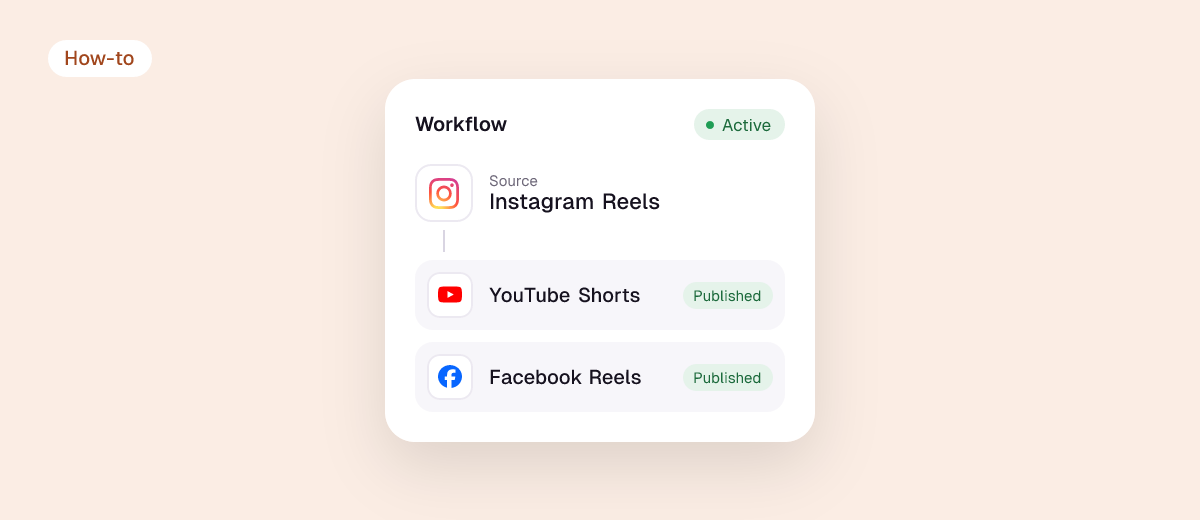
If your video is also going to TikTok, YouTube Shorts, Facebook, X or LinkedIn, upload it once and let a tool publish it everywhere. With Repostit you can either post a video from the planner, or set up a workflow so whatever you post on TikTok goes to Instagram Reels automatically, watermark removed and resized. See how to repost TikToks to Instagram Reels. 14-day free trial, no card.
Reel specs for desktop uploads
| Spec | Recommended |
|---|---|
| Aspect ratio | 9:16 (vertical) |
| Resolution | 1080 × 1920 |
| Format | MP4 or MOV (H.264, AAC audio) |
| Frame rate | 30 fps (24–60 accepted) |
| Length | Under 90 seconds for the best reach to non-followers; longer Reels are allowed |
| Safe zone | Keep text away from the bottom ~20% and right edge, where buttons and the caption sit |

Troubleshooting desktop uploads
| Problem | Fix |
|---|---|
| Video gets cropped to a square | Choose 9:16 or Original at the crop step |
| Upload fails or hangs | Re-export as MP4 H.264 with AAC audio, under 1 GB; try another browser or disable extensions |
| Video posted as a feed post, not a Reel | It’s still a Reel if it’s video; vertical 9:16 ensures it shows full-screen in the Reels tab |
| No Create button | Update your browser and log out/in; Create is in the left sidebar on desktop |
| Poor quality after posting | Upload 1080×1920; give Instagram a few minutes to process HD |
| Audio muted | The music isn’t licensed for your account type; use original or licensed audio. See reposting without copyright problems |
FAQ
Can I post Reels from a PC without the app?
Yes, from instagram.com. Videos uploaded through Create are posted as Reels.
Can I schedule Instagram Reels from my computer?
Not on instagram.com. Use Meta Business Suite (free, business or creator accounts) or a scheduling tool.
Can I add music to a Reel on desktop?
Not trending audio on instagram.com. Add music in your editor, or use Meta’s Sound Collection in Business Suite.
Can I post Reels from a Mac?
Yes, exactly the same way in Safari or Chrome.
How do I post the same Reel to TikTok and YouTube from my computer?
Use a cross-posting tool. See how to repost Instagram Reels on TikTok automatically.