 Gianni Cassoni
How to Post Instagram Reels from PC: Complete Browser Guide for 2025
Learning how to Post Instagram Reels from PC opens up new possibilities for content creators who prefer working on desktop computers. Whether you edit videos using professional desktop software, manage multiple accounts, or simply find it easier to work on a larger screen, knowing how to Post Instagram Reels from PC can significantly streamline your content workflow.
The process to Post Instagram Reels from PC differs from the mobile app experience because Instagram’s web interface doesn’t include a dedicated Reels button. On phones, you can upload Reels directly through the Reels tab, but on PC you need to use the regular Create Post upload option. Instagram will automatically recognize your video as a Reel once it meets the platform’s specifications.
This comprehensive guide walks you through every step required to Post Instagram Reels from PC successfully. You’ll learn the exact process, understand the technical requirements, and discover tips to ensure your Reels look professional when uploaded from a desktop browser.
Why Post Instagram Reels from PC Instead of Mobile
Before diving into the step-by-step process, understanding why you might want to Post Instagram Reels from PC helps you How to Post Instagram Reels from PC Browserappreciate the benefits of this approach. Many creators find desktop uploading offers advantages that the mobile app cannot match.
Professional Video Editing Workflow
If you use professional video editing software like Adobe Premiere Pro, Final Cut Pro, or DaVinci Resolve, your finished videos already exist on your computer. Being able to Post Instagram Reels from PC eliminates the need to transfer files to your phone, saving time and preserving video quality that might otherwise degrade during file transfers.
Better File Management
Desktop computers offer superior file organization compared to mobile devices. When you Post Instagram Reels from PC, you can easily access your entire video library, organized in folders exactly how you prefer. This makes it simpler to find specific content, manage multiple projects, and maintain an organized content archive.
Easier Caption Writing
Writing captions on a full-sized keyboard is significantly faster and more comfortable than typing on a phone screen. When you Post Instagram Reels from PC, you can craft longer, more detailed captions with proper formatting, include relevant hashtags, and proofread everything on a larger display before publishing.
Multi-Account Management
Social media managers who handle multiple Instagram accounts find it easier to Post Instagram Reels from PC. Desktop browsers allow quick switching between accounts, and you can have multiple browser tabs open for different profiles, streamlining the process of managing content across various brands or clients.
Step 1: Open Instagram on Your PC Browser
The first step to Post Instagram Reels from PC is accessing Instagram through your web browser. Unlike the mobile app experience, the PC interface presents a different layout that requires a slightly different approach.
Follow these instructions to get started:
- Open your preferred web browser such as Chrome, Firefox, Safari, or Edge
- Navigate to instagram.com
- Log in with your Instagram credentials if you’re not already signed in
- Ensure you’re logged into the correct account if you manage multiple profiles
Unlike the mobile app, the PC interface does not display a separate Reels section or dedicated Reels upload button. All uploads when you Post Instagram Reels from PC happen through the Create Post option, which Instagram then processes based on your video’s specifications.
The web interface has improved significantly over the years, and Instagram now supports full Reels functionality from desktop browsers. You’ll have access to most of the same features available on mobile, including caption editing, cover image selection, and basic trimming tools.
Step 2: Click the Create Post Button
Once you’re logged into Instagram on your PC, the next step to Post Instagram Reels from PC is locating and clicking the Create Post button. This button serves as the universal upload option for all content types on the desktop version.
Here’s how to find it:
- Look at the left sidebar of the Instagram interface where you’ll see various navigation options
- Find and click the “Create” option, which appears with a plus icon
- Alternatively, look for the plus icon in the top navigation area depending on your screen size
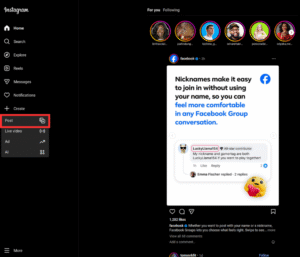
- Select “Post” from the dropdown menu that appears
This action opens the upload window where you can select your video file. The same interface handles both regular posts and Reels, with Instagram automatically determining the content type based on the video you upload.
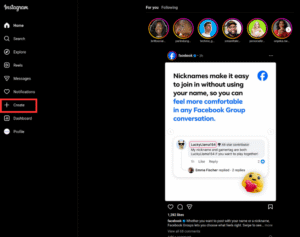
The interface may look slightly different depending on whether you’re using Instagram in light or dark mode, and whether you’ve recently updated your browser. However, the Create Post button consistently appears in the left sidebar for most users.
Step 3: Choose a Video That Meets Reels Requirements
A critical step when you Post Instagram Reels from PC is ensuring your video meets Instagram’s Reels specifications. Instagram automatically detects a video as a Reel when it fits certain criteria, so preparing your content correctly before uploading saves time and prevents issues.
Make sure your video meets these requirements:
Aspect Ratio
Vertical videos in 9:16 aspect ratio perform best for Reels. This is the standard vertical format that fills the entire phone screen when viewers watch your content. While Instagram accepts other aspect ratios, vertical videos receive better placement in the Reels feed and typically generate higher engagement.
Video Length
Your video must be under the maximum length allowed for Reels, which is currently up to 90 seconds. Additionally, the video must meet the minimum length requirement of approximately 3 seconds. Videos outside this range may be posted as regular video posts rather than Reels.
File Format
Instagram supports MP4 and MOV file formats for Reels uploads. MP4 with H.264 codec is the most widely compatible option and typically produces the best results when you Post Instagram Reels from PC. Ensure your video editing software exports in one of these supported formats.
Resolution and Quality
For optimal quality, export your videos at 1080 x 1920 pixels resolution. While Instagram will accept lower resolutions, higher quality source files produce better-looking Reels after Instagram’s compression. Aim for a bitrate of at least 3500 kbps for good quality.
Once your video fits these requirements, Instagram will automatically recognize it as a Reel during the upload process. You don’t need to select any special option to indicate you’re uploading a Reel rather than a regular post.
Step 4: Upload and Edit Your Reel
With your properly formatted video ready, the next step to Post Instagram Reels from PC is uploading the file and making any necessary edits within Instagram’s web interface.
Upload your video using one of these methods:
- Drag and drop your video file directly into the upload window
- Click “Select from computer” to browse your files and choose the video manually
Once your video uploads, Instagram’s web interface provides several editing options:
Trim Your Video
You can adjust the start and end points of your video directly in the browser. This is useful if you need to make minor adjustments without returning to your video editing software. However, for precise edits, completing your trimming before uploading typically produces better results.
Select a Cover Image
Choose the frame that will appear as your Reel’s thumbnail on your profile grid. You can scrub through the video to find the perfect frame, or upload a custom cover image if your plan includes that feature. A compelling cover image significantly impacts whether users click to watch your Reel.
Write Your Caption
Add a descriptive caption that encourages engagement. When you Post Instagram Reels from PC, you have the advantage of a full keyboard for writing longer, more detailed captions. Include relevant hashtags to improve discoverability, but avoid overloading with too many tags.
Add Location Tags
If your content relates to a specific location, adding a location tag can increase visibility among users interested in that area. This feature is particularly valuable for local businesses or travel content creators.
Step 5: Share Your Reel
The final step to Post Instagram Reels from PC is publishing your content. After you’ve reviewed all your edits, caption, and settings, you’re ready to share your Reel with your audience.
Before clicking Share, take a moment to review:
- Your caption is free of typos and includes appropriate hashtags
- The cover image accurately represents your content and looks appealing
- Any location tags are correct if you’ve added them
- The video preview shows your content as expected
When you’re ready, click the “Share” button. Instagram will process your video and post it to your Reels feed just like it would if you uploaded from the mobile app. Your Reel will appear on your profile’s Reels tab and may be distributed through Instagram’s recommendation algorithm to reach new audiences.
Processing time varies depending on your video’s length and resolution. Most Reels appear within a few minutes, though longer or higher-resolution videos may take slightly longer to process and become visible to viewers.
Technical Tips for Posting Reels from PC
To ensure the best results when you Post Instagram Reels from PC, keep these technical considerations in mind. Following these guidelines helps your content look professional and perform well in the algorithm.
Video Format Best Practices
Instagram supports MP4 and MOV files for Reels, but MP4 with H.264 codec typically produces the most consistent results. When exporting from video editing software, choose these settings for optimal compatibility:
- Container format: MP4
- Video codec: H.264
- Audio codec: AAC
- Frame rate: 30fps or 60fps
- Resolution: 1080 x 1920 pixels
Vertical Video Optimization
Always use vertical videos in 9:16 aspect ratio when you Post Instagram Reels from PC. Horizontal videos may not display correctly in the Reels feed and typically receive lower engagement because they don’t fill the viewer’s screen. If you have horizontal footage, consider cropping or reformatting it before uploading.
Preview Before Publishing
The PC interface allows you to preview how your Reel will appear before posting. Take advantage of this feature to catch any issues with framing, text placement, or overall appearance. Viewing your content on a larger screen often reveals problems you might miss on a phone.
Browser Considerations
For the best experience when you Post Instagram Reels from PC, use an updated version of Chrome, Firefox, Safari, or Edge. Older browsers or less common alternatives may not fully support Instagram’s web features. Clear your browser cache if you experience upload issues or unexpected behavior.
Troubleshooting Common Issues
Sometimes you may encounter problems when trying to Post Instagram Reels from PC. Here are solutions to the most common issues creators face:
Video Not Recognized as a Reel
If Instagram is posting your video as a regular post rather than a Reel, check that your video meets the length requirements. Videos must be between 3 and 90 seconds. Also verify the aspect ratio is vertical rather than horizontal or square.
Upload Fails or Freezes
Large file sizes can cause upload issues. Try compressing your video slightly while maintaining quality, or check your internet connection stability. Closing other bandwidth-intensive applications may help. If problems persist, try a different browser.
Video Quality Appears Degraded
Instagram compresses all uploaded videos, but starting with a high-quality source file minimizes quality loss. Export at 1080 x 1920 resolution with a bitrate of at least 3500 kbps. Avoid uploading videos that have already been compressed multiple times.
Create Button Not Visible
If you can’t find the Create Post button, try refreshing the page or clearing your browser cache. Some browser extensions can interfere with Instagram’s interface. Try disabling extensions temporarily or using an incognito window to troubleshoot.
Automating Instagram Reels Posting from PC
While manually learning to Post Instagram Reels from PC works well for occasional uploads, creators who post frequently may benefit from automation tools. Automating your posting workflow saves significant time and ensures consistent content distribution.
Repostit offers automation features that allow you to Post Instagram Reels from PC without manual intervention. Benefits of automation include:
- Schedule multiple Reels in advance to maintain a consistent posting schedule
- Cross-post content from other platforms automatically with watermarks removed
- Batch upload multiple videos at once rather than posting one at a time
- Post at optimal times even when you’re not available to upload manually
- Manage multiple Instagram accounts from a single dashboard
Automation is particularly valuable for content creators and social media managers who need to Post Instagram Reels from PC regularly while maintaining other responsibilities. Rather than interrupting your workflow to manually upload each video, automation handles distribution while you focus on content creation.
Frequently Asked Questions
Can I add music when I Post Instagram Reels from PC?
The Instagram web interface has limited music library access compared to the mobile app. For best results, add music to your video in your editing software before uploading. This approach also gives you more control over timing and music selection when you Post Instagram Reels from PC.
Why doesn’t my PC show the Reels button?
Instagram’s desktop interface doesn’t include a dedicated Reels button like the mobile app. When you Post Instagram Reels from PC, you use the regular Create Post button, and Instagram automatically recognizes qualifying videos as Reels based on their specifications.
What’s the maximum file size for uploading Reels from PC?
Instagram doesn’t officially publish maximum file sizes, but videos up to 650MB typically upload without issues. If you experience problems with larger files, try reducing the bitrate slightly while maintaining resolution. Smaller files also upload faster and more reliably.
Can I use effects and filters when I Post Instagram Reels from PC?
The desktop web interface offers fewer effects and filters compared to the mobile app. If you need specific Instagram effects, consider applying them on mobile or adding effects in your video editing software before you Post Instagram Reels from PC.
Is posting from PC better than posting from phone?
Neither method is inherently better. The choice depends on your workflow preferences. Many creators prefer to Post Instagram Reels from PC when they edit on desktop software, while others prefer the mobile app’s direct integration with Instagram’s creation tools. Both methods produce identical results for viewers.
Can I schedule Reels when posting from PC?
Instagram’s native web interface offers limited scheduling capabilities for professional accounts. For more robust scheduling when you Post Instagram Reels from PC, third-party tools like Repostit provide advanced scheduling features that let you queue content in advance.
Summary
Learning to Post Instagram Reels from PC provides content creators with valuable flexibility in their workflow. While the process differs slightly from the mobile app experience, it’s entirely possible to upload professional-quality Reels directly from your desktop browser.
Key takeaways for successfully posting Reels from PC:
- Access Instagram through your web browser and use the Create Post button to upload
- Ensure your video meets Reels specifications including vertical 9:16 aspect ratio and 3 to 90 second length
- Use MP4 format with H.264 codec for best compatibility when you Post Instagram Reels from PC
- Take advantage of the larger screen to write better captions and review your content before publishing
- Consider automation tools like Repostit if you need to schedule multiple uploads or manage cross-platform distribution
Whether you’re a professional content creator, social media manager, or casual user who prefers desktop workflows, knowing how to Post Instagram Reels from PC ensures you can publish content efficiently from any computer. The desktop approach is especially valuable when your video editing happens on PC, eliminating unnecessary file transfers and streamlining your entire content creation process.
Related Resources
Continue learning about Instagram content creation with these helpful guides:
- Best Times to Post on Instagram in 2025 Optimize your posting schedule for maximum engagement.
- How to Cross-Post Content Across All Platforms Learn automated distribution strategies.
- How to Remove Video Watermarks Automatically Create clean, professional-looking content.
Official Platform Resources
- Instagram Help Center Official Instagram documentation and support resources.
- Instagram for Creators Official creator resources and best practices from Instagram.
- Instagram for Business Resources for professional accounts and business features.