 Gianni Cassoni
How to Create Shorts from Twitch Streams: The Ultimate Repurposing Guide
For Twitch streamers, understanding how to create shorts from Twitch is effectively the difference between streaming to the same 10 viewers forever and building a thriving, growing community. Twitch remains the dominant livestreaming platform with over 7 million active streamers, but it suffers from a critical weakness: there is no algorithmic discovery feed. New viewers do not stumble upon small streamers by accident.
This is why the fastest-growing creators use a specific funnel: they use high-reach platforms like TikTok, YouTube Shorts, and Instagram Reels to capture attention, and then funnel that traffic to their live Twitch streams. Mastering how to create shorts from Twitch allows you to turn a single 4-hour broadcast into 10–15 pieces of viral marketing material. If you are looking for an automated way to clip, reframe, and distribute your Twitch VODs across every short-form platform, check out Repostit.io for a streamlined end-to-end solution.
Why Repurposing Twitch Streams into Shorts Matters
Live streaming is a destination; short-form video is a discovery mechanism. When you learn how to create shorts from Twitch, you are building a bridge between these two worlds. The goal is not just to “post clips,” but to translate the context of a live stream into a 60-second standalone story that hooks viewers who have never heard of you.
Twitch’s browse directory is overwhelmed with saturation — over 7 million streamers competing for attention in a category-based system that heavily favors those already at the top. A streamer with 50 concurrent viewers on Twitch can reach 500,000 people on TikTok with a single well-edited clip. This asymmetry is why every serious streamer needs to understand how to create shorts from Twitch as part of their core growth strategy.
There is also an urgency factor unique to Twitch: VODs expire. Standard users lose their archived broadcasts after 14 days. Even Partners and Turbo subscribers only get 60 days. If you do not repurpose your content within that window, it is gone forever. Learning how to create shorts from Twitch is not just a growth strategy — it is a content preservation strategy.
Here is how the metrics differ between your source content (Twitch) and your destination content (Shorts):
| Metric | Twitch Stream (Source) | Viral Short (Destination) |
|---|---|---|
| Format | 16:9 Horizontal (Landscape) | 9:16 Vertical (Portrait) |
| Duration | 2–8 Hours | 15–60 Seconds |
| Pacing | Slow, conversational, community-driven | Fast, hook-first, action-dense |
| Discovery | Browse Directory (Low Reach, Saturated) | Algorithmic Feed (High Reach) |
| Content Lifespan | 14–60 Days (VOD Expiry) | Indefinite (Searchable Forever) |
| Audience | Existing followers and regulars | Cold viewers discovering you for the first time |
| Goal | Retain and monetize existing community | Acquire new traffic and funnel to live streams |
Method 1: Manual Clipping and Editing
The highest quality method for how to create shorts from Twitch involves manually editing your VODs (Video on Demand). This ensures perfect comedic timing, precise layout control, and maximum creative expression — though it requires editing skills and a significant time investment.
The Vertical Layout Challenge
The biggest technical hurdle when learning how to create shorts from Twitch is converting a horizontal gameplay feed into a vertical phone screen. You cannot simply squeeze the video — the gameplay becomes unwatchable at that scale. Instead, you must use a “Stack Layout” that splits the screen into distinct zones.
Step-by-Step Manual Process
- Download your VOD: Go to your Creator Dashboard on Twitch > Content > Video Producer > select the stream > Download. Twitch provides VODs in the original broadcast quality. Remember that standard VODs expire after 14 days (60 for Partners/Turbo), so download promptly after each stream.
- Import to your editor: Use specialized tools like CapCut (free, mobile-friendly), DaVinci Resolve (free, professional), or Adobe Premiere Pro (paid, industry standard). Create a new project with a 1080×1920 (9:16) sequence.
- Create the Stack Layout:
- Top Third: Isolate and zoom into your Facecam. This is the “reaction” zone — viewers connect with your face first.
- Middle/Bottom: Isolate the Gameplay or main content. Zoom in on the action area rather than showing the full 16:9 frame.
- Gap Fill: Use the blurred original video, a gradient, or a branded background to fill any remaining space between the zones.
- Trim to the highlight: Identify the single best 15–60 second moment. Cut everything before and after it ruthlessly — no “building up to the moment” pacing that works in streams.
- Add a hook: Place a text overlay in the first frame that creates curiosity: “He didn’t see this coming,” “Watch until the end,” or a question. This is critical because short-form viewers decide within 1–2 seconds whether to keep watching.
- Add captions: Burned-in subtitles are mandatory for shorts. Over 50% of mobile users watch without sound. Use large, bold, center-screen captions with a contrasting background or outline for readability.
- Export and upload: Export as MP4 (H.264), 1080×1920, 60fps, 15–20 Mbps bitrate. Upload separately to TikTok, Instagram Reels, and YouTube Shorts with platform-specific captions and hashtags.
Time investment: Expect 20–40 minutes per clip using the manual method. For streamers producing 2–3 clips per stream session, this adds up to 1–2 hours of post-stream editing work. This is the trade-off for maximum creative control when learning how to create shorts from Twitch.
Method 2: Twitch’s Native Clip Editor + AI Tools
For streamers who stream daily, manual editing is a bottleneck. Twitch has recognized the need for vertical content and built a native “Edit & Share” tool directly into the Creator Dashboard. Combined with external AI tools, this approach has revolutionized how to create shorts from Twitch.
Using Twitch’s Built-In Clip Editor
- Go to Creator Dashboard: Navigate to Content > Clips.
- Select a Clip: Choose a clip created by you or your viewers during the stream.
- Click “Edit & Share”: This opens Twitch’s vertical clip editor, which provides basic reframing tools.
- Adjust Layout: Use the native split-screen tool to select your facecam (top) and gameplay (bottom).
- Share or Download: You can share directly to a connected YouTube account or download the file to post on TikTok/Instagram.
Limitation: This method only works on existing clips — segments that were explicitly marked by you or your viewers during the stream. It does not scan your full VOD for hidden gems you might have missed. You are limited to whatever moments someone thought to clip in real-time.
External AI Clipping Tools
AI tools like Eklipse or StreamLadder go further by detecting “high engagement” moments (loud volume, chat spikes, laughter) and automatically clipping them from your full VOD. While these tools handle the cutting and basic reframing, you still need a distribution strategy. This is where Repostit fits into the workflow — once your clips are generated, Repostit can automate the scheduling and posting across TikTok, Instagram, and YouTube simultaneously.
Method 3: Use Repostit’s AI Video-to-Short to Create Shorts from Twitch Automatically
If you want to skip external clipping tools entirely, Repostit offers an end-to-end solution for how to create shorts from Twitch using its AI Video-to-Short feature. Instead of manually scrubbing through hours of VOD footage, the AI analyzes your entire stream recording, identifies the most engaging moments, reframes the video from horizontal to vertical, adds captions, and queues the clips for publishing — all from a single upload.
Unlike unsafe scraping tools, Repostit connects securely via the official Twitch API OAuth 2.0 flow. This means it uses User Access Tokens to read your content without ever needing your password — your channel stays safe while you automate growth. This approach eliminates every manual step in the pipeline: no downloading third-party tools, no timeline editing, no export settings. You upload a Twitch VOD and receive ready-to-publish vertical shorts.
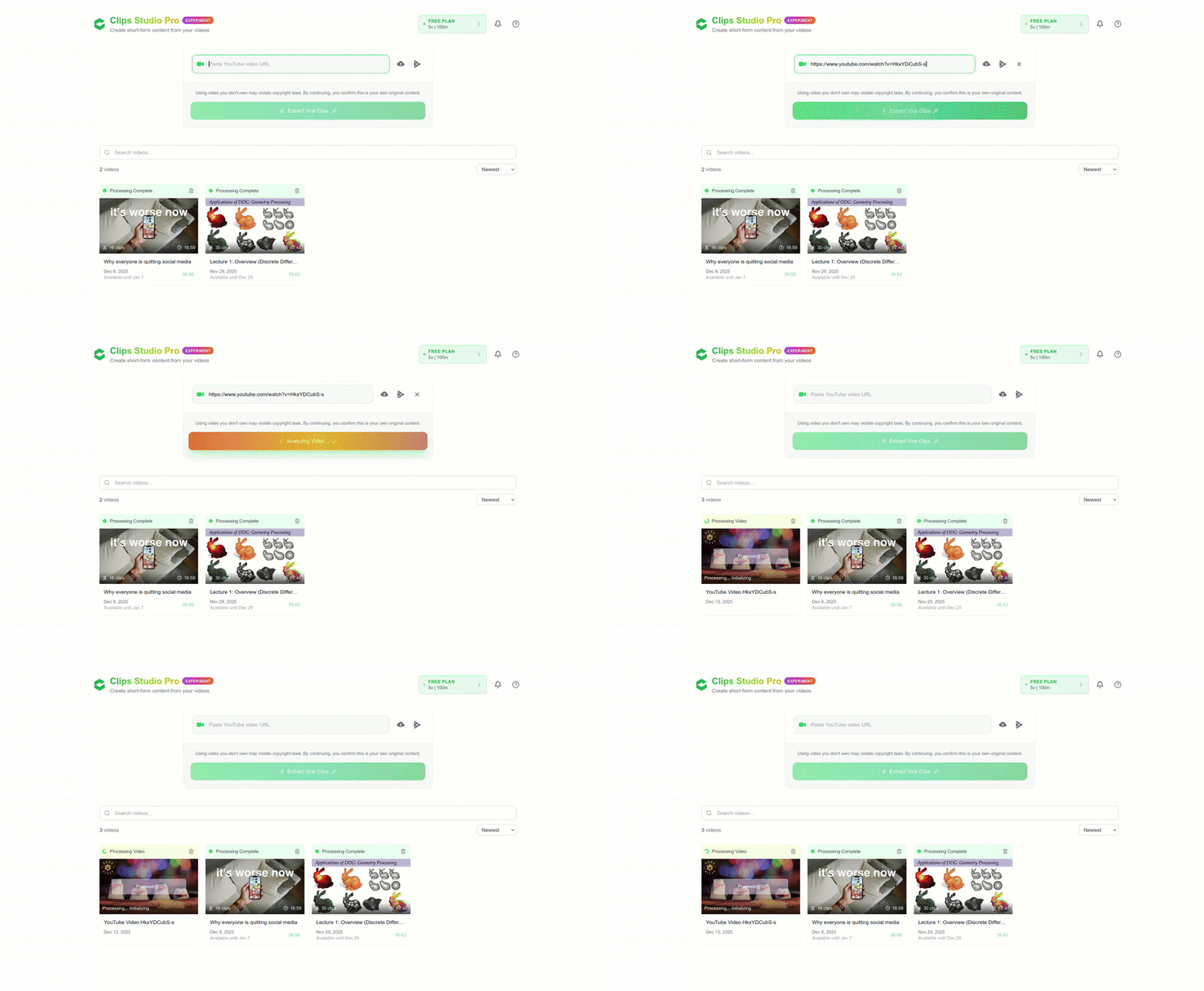
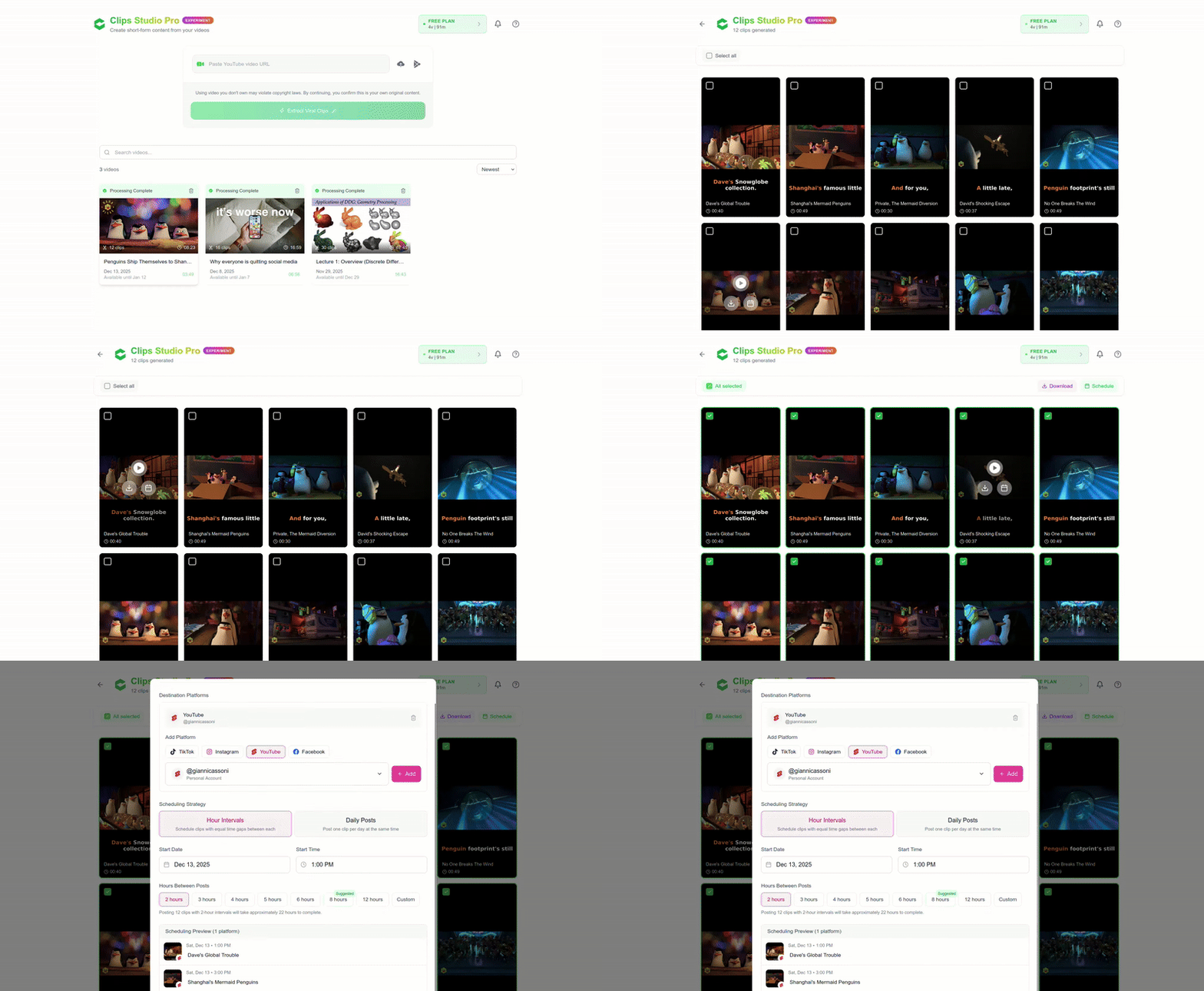
Step 1: Upload Your Twitch VOD or Paste a URL
Sign in to the Repostit dashboard. Navigate to the “Video to Short” feature. You can either upload your downloaded Twitch VOD file directly, or paste the URL of your Twitch clip or VOD. Repostit will fetch the video, analyze its full duration, and prepare it for AI processing. This is the fastest way to learn how to create shorts from Twitch without touching a video editor.
Step 2: Let AI Extract the Best Moments
Once your Twitch stream is uploaded, Repostit’s AI engine performs several intelligent operations to create shorts from Twitch automatically:
- Scans the entire VOD for high-engagement moments — sudden volume spikes, fast-paced gameplay, and dramatic reactions.
- Extracts multiple 15–60 second clips optimized for short-form platforms.
- Converts from 16:9 horizontal to 9:16 vertical using intelligent reframing that keeps your facecam and gameplay in focus.
- Generates burned-in captions automatically, ensuring maximum engagement from silent viewers.
A single 4-hour Twitch stream can produce 10–15 short clips without any manual editing. This is what makes AI-powered tools the most efficient method for how to create shorts from Twitch at scale.
Step 3: Connect Your Destination Accounts
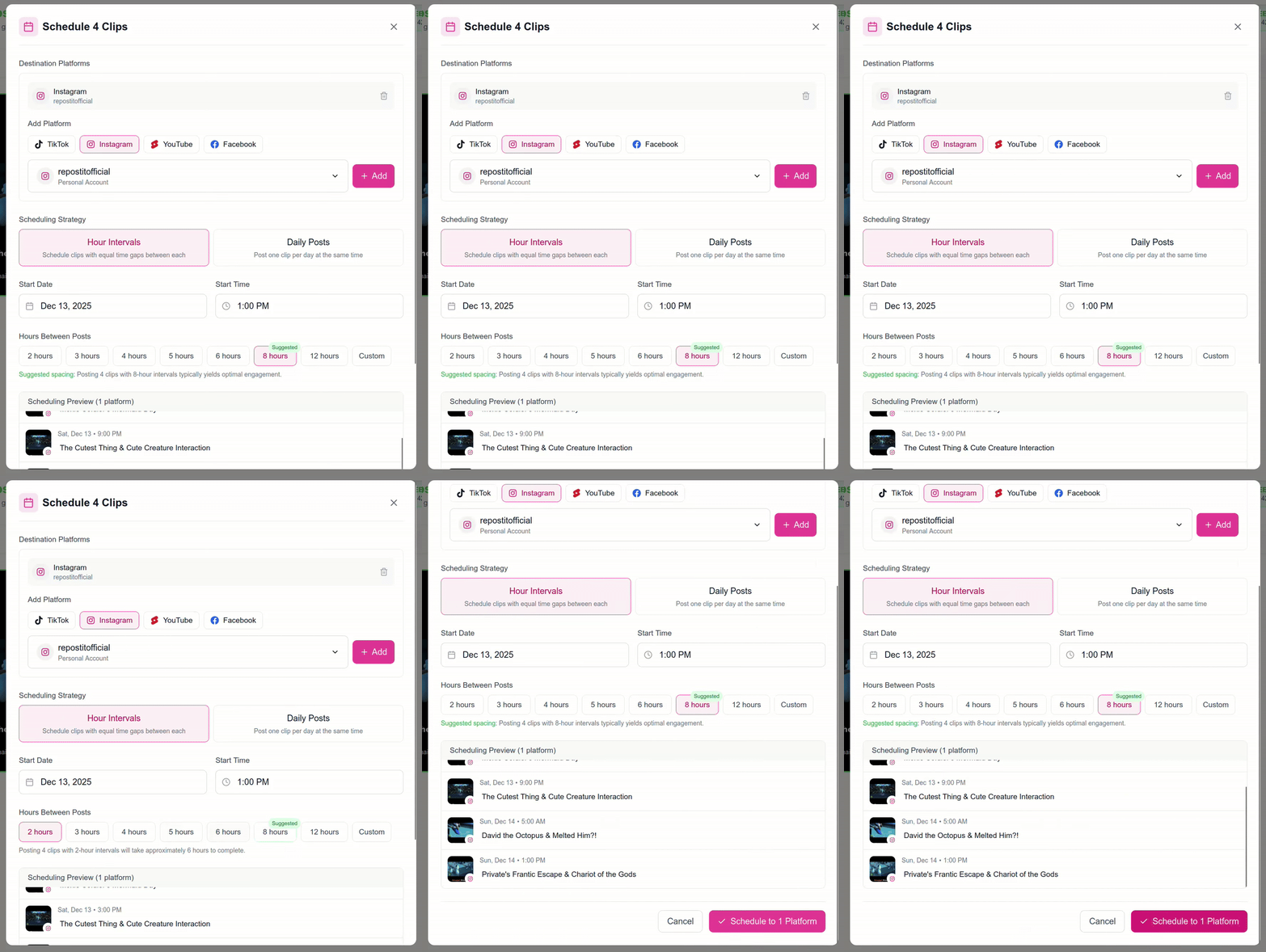
Next, connect the platforms where you want your Twitch shorts published. Repostit supports simultaneous distribution to TikTok, Instagram Reels, YouTube Shorts, and Facebook Reels — all from one workflow.
- Click “Connect Account” in the Repostit dashboard.
- Complete the authentication prompts for each platform (TikTok, Instagram, YouTube).
- Grant the necessary posting permissions — Repostit uses secure OAuth and official APIs.
Once connected, every short generated from your Twitch stream is automatically queued for publishing across all linked platforms. This multi-destination approach is what separates streamers who understand how to create shorts from Twitch strategically from those who post clips manually to one platform at a time.
Step 4: Review, Customize, and Publish
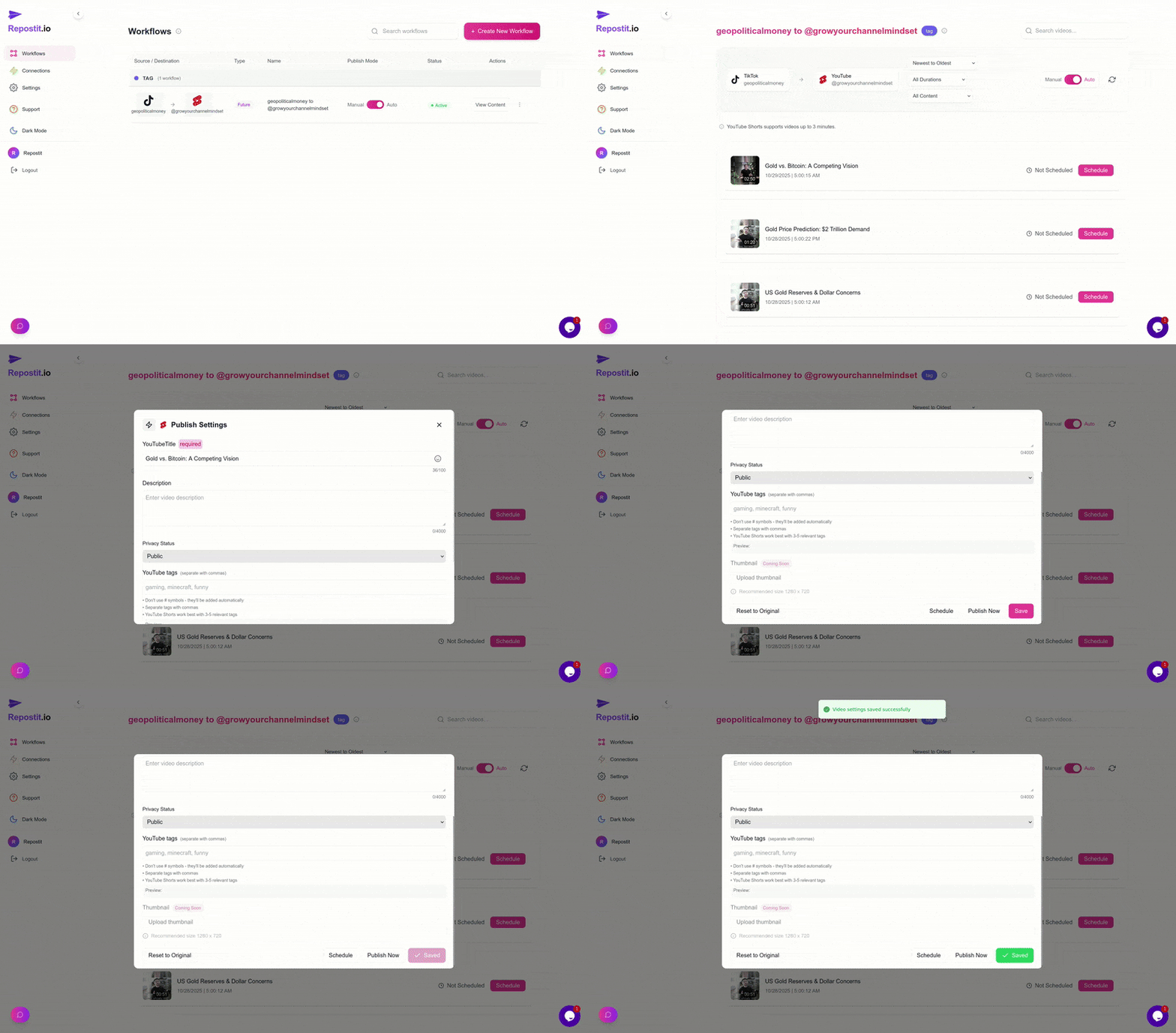
Before publishing, Repostit lets you review every AI-generated short. You can:
- Preview each clip to ensure the best moments were captured.
- Customize captions per platform — TikTok hashtags differ from Instagram hashtags.
- Schedule publishing times for each platform’s peak engagement window.
- Discard or re-order clips if certain moments do not fit your brand.
Click “Create Workflow” to activate the automation. No watermarks, no quality loss, and no repeated manual uploads — just hands-free distribution that helps you create shorts from Twitch consistently and professionally.
Step 5: Scale with a Content Calendar
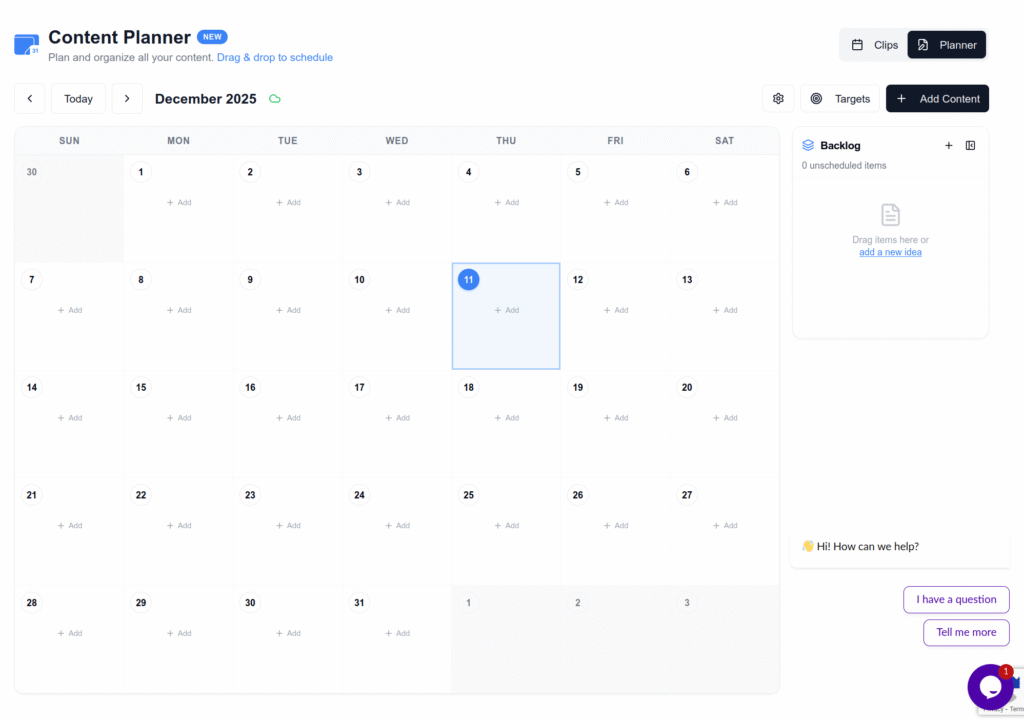
If you stream on Twitch multiple times per week, you can batch-upload VODs and let the AI generate shorts from each session. Use Repostit’s content calendar to visualize your publishing schedule across all platforms and ensure you are posting consistently without gaps.
Pro tip: Upload your Twitch VOD immediately after each stream — remember, standard VODs expire after just 14 days. The AI uses audio energy patterns that align with moments your audience reacted to most. The sooner you process the VOD, the more relevant the clips will feel when published. This is the workflow that professional streamers use to create shorts from Twitch at scale without hiring a dedicated editor.
Method Comparison: Manual vs. AI Clipping vs. Repostit
Choosing the right method for how to create shorts from Twitch depends on how often you stream and how many clips you need per week. Here is a direct comparison:
| Factor | Manual Editing | Twitch Clip Editor + AI Tools | Repostit (End-to-End) |
|---|---|---|---|
| Editing Required | Full manual editing | Minimal tweaking | None — AI handles everything |
| Vertical Reframing | Manual crop + stack | Template-based or native editor | Intelligent auto-reframe |
| Captions | Manual or separate tool | Built-in (basic) | Auto-generated, customizable |
| Distribution | Manual upload to each platform | Manual upload to each platform | Auto-publish to TikTok, Instagram, YouTube, Facebook |
| Time per Stream | 2–4 hours of editing | 30–60 minutes | 5 minutes (upload + review) |
| Best For | Perfectionists, 1–2 streams/week | Daily streamers wanting control | High-volume streamers wanting hands-free growth |
| Cost | Free (your time) | Free tiers + paid plans | Free 14-day trial, then paid plans |
Technical Specs for Twitch-to-Shorts
When you export your clips, adhering to strict technical standards ensures the platforms don’t compress your quality into a blurry mess. Follow these specs when mastering how to create shorts from Twitch:
| Setting | Recommended Value | Why? |
|---|---|---|
| Resolution | 1080×1920 | Native smartphone resolution for 9:16 vertical. |
| Frame Rate | 60fps | Matches gameplay smoothness (critical for gaming content). |
| Codec | H.264 (MP4) | Universally accepted by TikTok, Instagram, and YouTube. |
| Bitrate | 15–20 Mbps | Higher than standard to preserve fast-motion detail and text clarity. |
| Duration | 58 Seconds Max | Safe zone for YouTube Shorts (60s hard limit) with a margin. |
| Audio | AAC, 128–256 kbps, Stereo | Ensures voice and game audio are clear without exceeding file size limits. |
| Safe Zones | Leave bottom 20% and right 15% clear | Avoids UI overlays (captions, username, like/share buttons) on all platforms. |
| File Size | Under 500MB | Prevents upload timeouts and ensures reliable processing across all platforms. |
The Muted VOD Problem (And How to Solve It)
Twitch is stricter than any other streaming platform regarding copyrighted audio. When learning how to create shorts from Twitch, you must navigate the infamous “Red Mute Bar” — Twitch’s automated system that mutes sections of your VOD if it detects licensed music. If you try to create a short from a muted section, the clip will have zero audio, rendering it completely useless for TikTok or YouTube Shorts.
The VOD Track Strategy
The Fix: Use OBS Studio to separate your audio tracks before the problem ever occurs. Configure your audio settings as follows:
- Track 1 (Live Track): Music + Voice + Game Audio — this is what your live viewers hear.
- Track 6 (VOD Track): Voice + Game Audio only — no music. Configure Twitch to only save this track.
By setting Twitch to archive only Track 6, your downloadable VODs will be completely music-free and safe for cross-posting to TikTok, YouTube, and Instagram without any risk of muting, copyright strikes, or takedowns. This is a critical setup step that most guides on how to create shorts from Twitch overlook entirely.
Important note on HDR: While Twitch supports streaming in high quality, TikTok and Instagram do not always tone-map HDR correctly. The result is a “gray washed out” look where colors appear desaturated after upload. If you plan to create shorts from Twitch, ensure your OBS or streaming software is set to record in SDR (Rec. 709) color space. This prevents color profile mismatches when your clips reach short-form platforms.
Common Mistakes When Repurposing Twitch Streams
Even veteran streamers make errors that kill the reach of their clips. Understanding these pitfalls is essential to successfully implementing how to create shorts from Twitch without sabotaging your own growth. Here is what to avoid:
| Mistake | Impact | Solution |
|---|---|---|
| Keeping the “Streamer Intro” | Viewer scrolls away instantly — you lose 80% of viewers in the first 2 seconds | Cut the “Hey guys welcome back” and start directly on the action or hook. |
| Clipping from muted VOD sections | Silent clip with zero engagement — completely unusable on short-form platforms | Set up the VOD Track Strategy in OBS (Track 1 for live, Track 6 for VOD without music). |
| Small or unreadable subtitles | Low engagement from silent watchers (over 50% of mobile users watch without sound) | Use large, bold, center-screen “karaoke style” captions with high contrast backgrounds. |
| Ignoring context for new viewers | Confuses cold audiences who have never seen your stream | Add a text hook at the start (e.g., “Watch what happens when…” or “This player had NO idea”). |
| Leaving stream overlays visible | Alerts, donation tickers, sub goals, and chat boxes clutter the vertical frame | Remove or crop out stream-specific overlays in the short version — they add nothing for new viewers. |
| Including “BRB” or “Starting Soon” screens | Instant swipe away — dead content that kills retention metrics | Never include AFK, intro, BRB, or “ending stream” screens in a short. |
| Uploading horizontal without reframing | Tiny 16:9 video with massive black bars — algorithms deprioritize this format | Always convert to 9:16 vertical using the stack layout (facecam top, gameplay bottom). |
| Posting all clips at once | Floods your followers’ feeds, reducing per-post engagement | Space clips 4–8 hours apart or schedule 2–3 per day across different platforms. |
| Using copyrighted background music | Clips get muted or taken down on Instagram and YouTube | Rely on in-game audio and your voice. If you need music, use royalty-free libraries like Epidemic Sound. |
| Not downloading VODs before expiry | Content lost forever after 14 days (standard) or 60 days (Partner/Turbo) | Download or process your VODs within 24 hours of each stream ending. |
| Not tracking performance per platform | Cannot identify which clip types resonate on which platform | Use each platform’s native analytics independently — a clip that flops on TikTok may perform well on YouTube Shorts. |
Step-by-Step Summary
To consolidate everything covered in this guide, here is the concise step-by-step process for how to create shorts from Twitch effectively:
- Stream on Twitch using a high bitrate (6000+ kbps) and SDR color space. Set up separate VOD audio tracks in OBS to avoid muted sections.
- Mark highlights during the stream by typing
/markerin your Twitch chat, using your Stream Deck, or having mods use clip commands. Note timestamps in a text file as a backup. - Download the clips or full VOD immediately after the stream ends from your Twitch Creator Dashboard. Do not wait — standard VODs expire after 14 days.
- Choose your method:
- Manual: Import into CapCut, Premiere, or DaVinci Resolve. Create the vertical stack layout (facecam top, gameplay bottom). Add captions and a hook.
- Twitch Clip Editor + AI: Use Twitch’s native “Edit & Share” tool for existing clips, or StreamLadder/Eklipse for automated highlight detection and basic reframing.
- End-to-End Automation: Upload the VOD to Repostit’s AI Video-to-Short feature — it handles extraction, reframing, captions, and publishing automatically via secure OAuth connection.
- Reframe to vertical (9:16) ensuring the facecam is centered in the top third and gameplay fills the bottom two-thirds.
- Add hooks and captions to make the content accessible to cold audiences who have never seen your stream.
- Customize per platform: Write TikTok-style captions with trending hashtags, Instagram captions with niche hashtags, and YouTube Shorts titles with searchable keywords.
- Distribute across TikTok, Instagram Reels, and YouTube Shorts — stagger posting times by 4–8 hours to catch different audience peaks.
- Monitor analytics independently on each platform and double down on clip formats that drive the most profile visits and follows back to your Twitch channel.
Frequently Asked Questions
Related Resources and Guides
Continue exploring how to maximize your Twitch streams and grow your audience across every platform:
Repostit Guides
- Convert Long Videos into Short Clips — Learn how Repostit’s AI Video-to-Short feature works for any long-form content, including Twitch VODs, YouTube videos, and podcast recordings.
- How to Repost TikTok to Instagram Reels — Once your Twitch shorts are on TikTok, learn how to automatically distribute them to Instagram Reels as well.
- How to Repurpose Content Automatically — The complete guide to turning one piece of content into dozens of posts across every platform.
- How to Create an Effective Content Calendar — Plan your Twitch stream schedule and short-form publishing cadence for maximum consistency.
- How to Grow Your Audience on Instagram, TikTok, YouTube, and Facebook — Cross-platform growth strategies that complement your Twitch streaming funnel.
Official Platform Guidelines
- Twitch Community Guidelines — Twitch’s official content policies and terms of service for streamers.
- Twitch Developer API Documentation — Official API reference for building integrations with Twitch.
- TikTok Community Guidelines — TikTok’s official content and community standards for cross-posted clips.
- Instagram Reels Guidelines — Meta’s official guidelines for Reels content.
- YouTube Creator Policies — YouTube’s official documentation covering Shorts specifications and content policies.
Start Creating Shorts from Twitch Today
Now you know exactly how to create shorts from Twitch — from manual editing for maximum creative control, to Twitch’s native clip editor and AI clipping tools for speed, to Repostit’s fully automated Video-to-Short pipeline for hands-free scaling. The streamers growing fastest in 2026 are not the ones streaming the most hours; they are the ones repurposing every stream into dozens of discoverable short-form clips across TikTok, Instagram, and YouTube.
Your Twitch stream is a content goldmine — but one with an expiration date. Every session contains highlights that can attract thousands of new viewers, but only if those moments escape the VOD archive before the 14-day (or 60-day) deletion window and reach the platforms where audiences are actively discovering new creators. Whether you edit manually or let Repostit handle everything, the most important step is starting. Upload your first Twitch VOD today and turn one stream into a week of content.